Facebook definitely allows you to easily communicate with others, but if you’re not careful, certain information you would like to remain private can be exposed. Here we take a look at locking down your profile, and how to avoid other annoyances.
Keep it Private
Facebook is a great way to keep in touch with friends, family and other contacts online. It’s also a great place to spread personal information, pictures, and other data to everyone if you don’t use the proper settings. The first thing you want to do is change default settings under the Privacy Settings.

Take the time to go through each of the privacy sections and make the appropriate choices for your profile.

Go through each section to adjust who can see your information. Of course showing it to everyone will be the least private.

Make sure to go through the settings for both Basic and Contact information.

If you choose a custom setting you can select who sees it and even block out specific users (like your crazy ex).

Control what information is on your wall, and what posts to your friend’s wall.

Control what other people can see about you in searches.

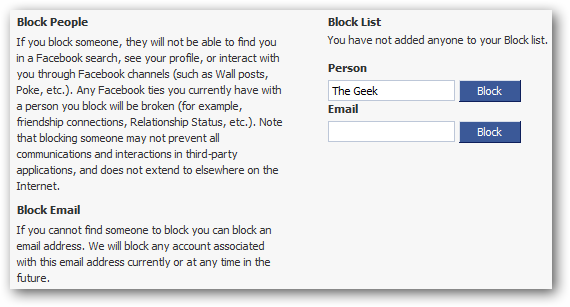
If there are certain users you don’t want to be able to contact you then you can put them in the block list.
Avoid Quizzes and Other Snooping Apps
You might be enticed to take the multitude of quizzes and games on Facebook because you’re bored or other friends have recommended them. They can however, be aggressive data miners. So when you’re taking a quiz to find out “Who is your Celebrity Twin” the developers of those quizzes are gathering your personal data.

It’s not a secret that your information is being shared through Facebook applications. If you go into the Applications overview under Privacy settings, it states how apps interact with your data. Here are a few of the items in the privacy statement.
“When you authorize an application, it will be able to access any information associated with your account that it requires to work.”“When a friend of yours visits an application or authorizes it, the information that the application can access includes your friend’s friend list and information about the people on that list.”“If you interact with an application that has been restricted to users of a certain age and/or country without explicitly authorizing the application, the application might be able to infer your approximate birth date or location because you were able to access the application.”
Under the Privacy section and Application Settings you can control what types of information can be seen through apps. If you don’t want anything shared select that option at the bottom.

With Facebook being a central hub of social activity, you might have co-workers, supervisors, or the head boss as a contact. If you are playing games on company time, make sure you don’t get busted on Facebook. Under the same apps privacy page we were at above, scroll down a bit further and check the box under Beacon Websites. A Beacon Site where you play a game needs to be an affiliate of Facebook, but if you aren’t sure, you might want to check this box to be safe.

Conclusion
Facebook can be a lot of fun and is a great place to keep in touch with others, but by default it shares a lot of information that you might want to remain private. These steps should help you out in protecting your privacy, and avoiding potentially embarrassing or awkward situations.
source: http://www.howtogeek.com/howto/5032/how-to-lock-down-your-facebook-account/
source: http://www.howtogeek.com/howto/5032/how-to-lock-down-your-facebook-account/


